Please Install And Activate Gtranslate Plugin
About us
It takes more than a private internet browser to go incognito. We’ll make your real IP address.
Your IP Address:
- 216.73.216.218, 104.23.243.48
Your Location:
- ,
Your Status:
Unprotected
It takes more than a private internet browser to go incognito. We’ll make your real IP address.
Unprotected
The DD WRT v3 router OpenVPN setup can boost your online privacy and security by making sure all devices on your network have encrypted internet traffic. This guide will show you how to easily set it up with CoverMeVPN so you can bypass geo-restrictions and keep your online activities private.
The following is required for covermevpn to work with a DD-WRT router:
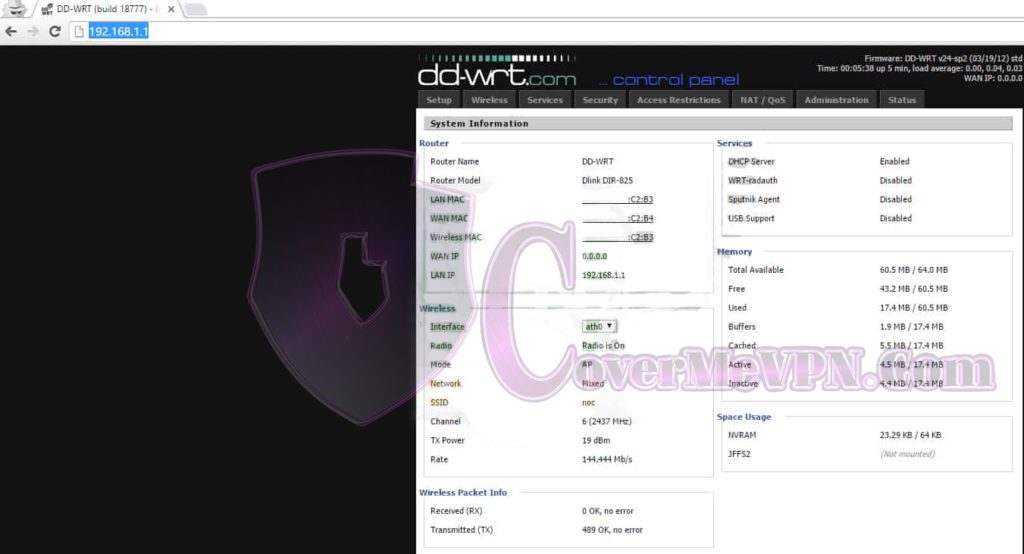
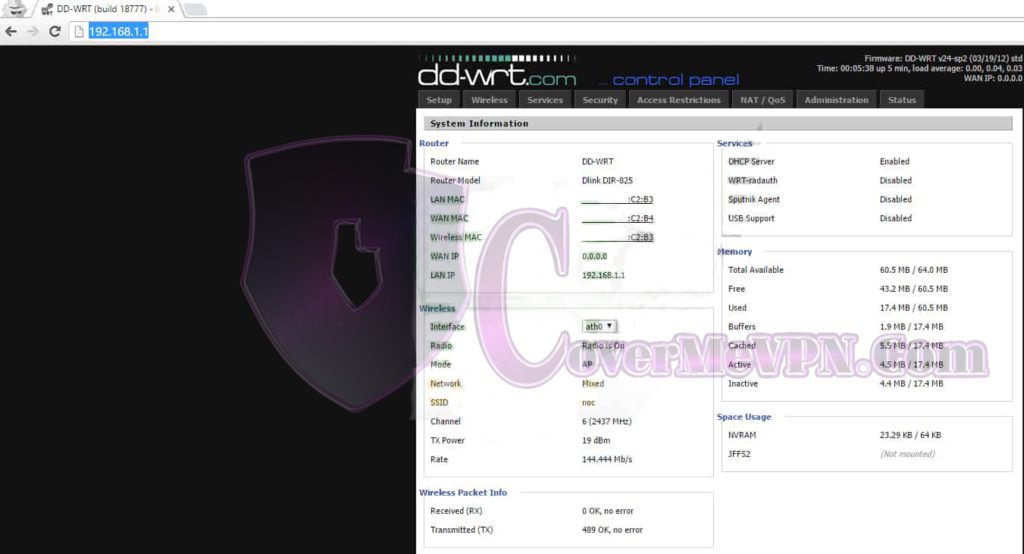
Before following this guide, you will need to install DD-WRT on your router. To do this, you will need to go to DD-WRT’s router database and search for your router’s model number to see if your router is compatible or find a beta build for your router. This guide uses KONG’s beta build of DD-WRT v3.0-r31520M on a Netgear R7000.
Important Note: Certain beta builds may not work with OpenVPN. Please read the feedback in the build forum before installing a beta build. Also note, regardless of what model router you have or version of DD-WRT you are installing, there is a chance of bricking your router (i.e. rendering the router completely useless) if the process of putting DD-WRT on the router does not complete properly. Please thoroughly read and follow the related documentation regarding the updating procedure for you router, to minimize the risk of bricking your router.
Initial DD-WRT Setup and Important Notes
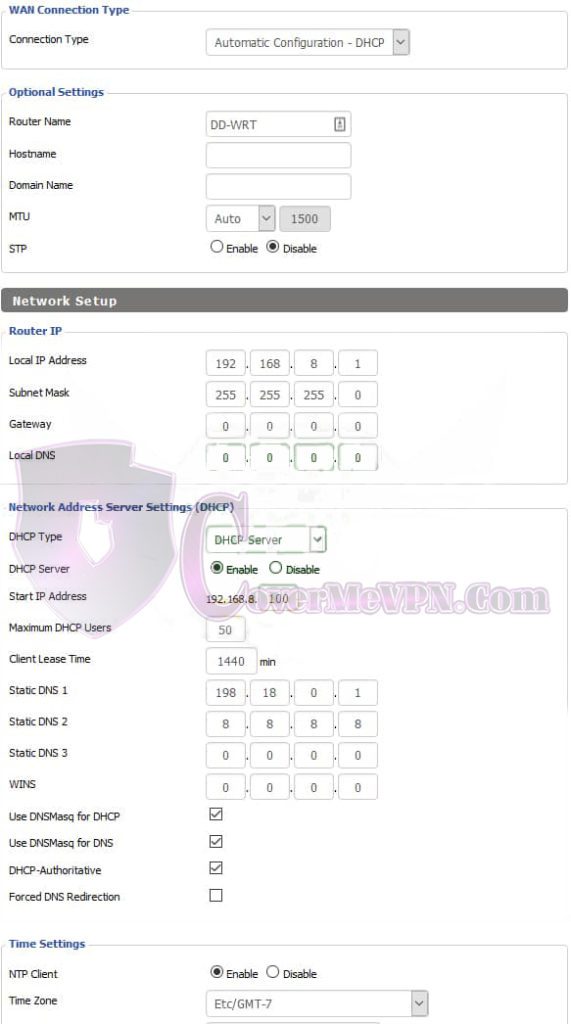
Please check and consider the following before setting up your VPN connection in DD-WRT:
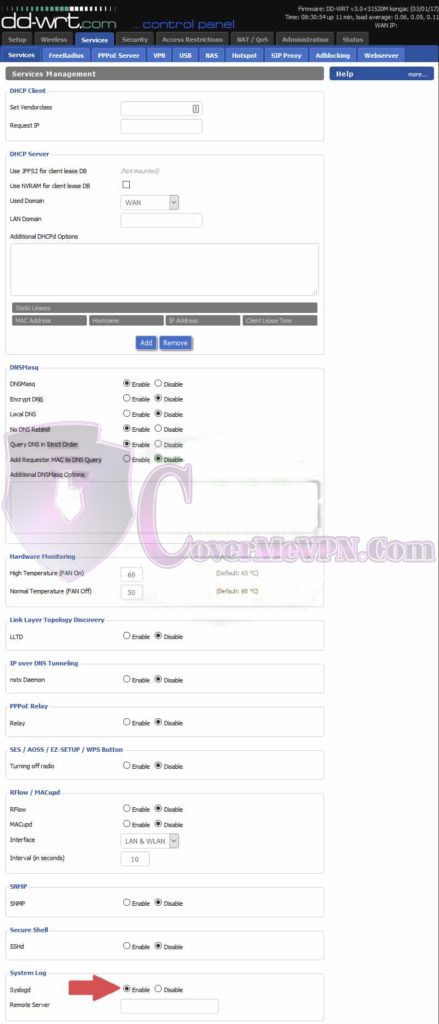
Enable Syslogd so you can get logs if you run into any trouble with your setup. You can do this by going to Services tab and scrolling down to System Log, then Enable Syslogd.
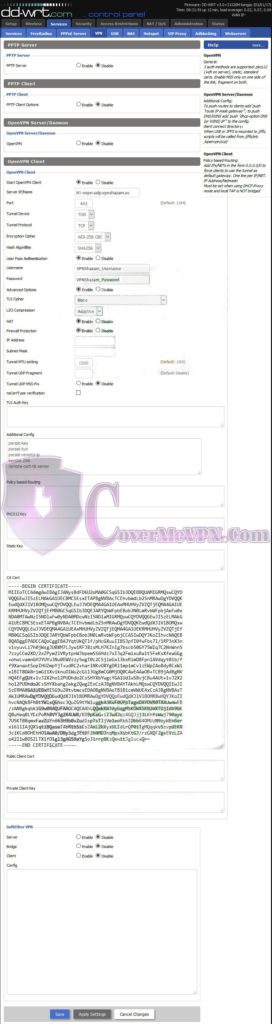
To setup the VPN connection on your router, go to the Services/VPN tab, enable the OpenVPN Client, and set the connection up using the following settings:
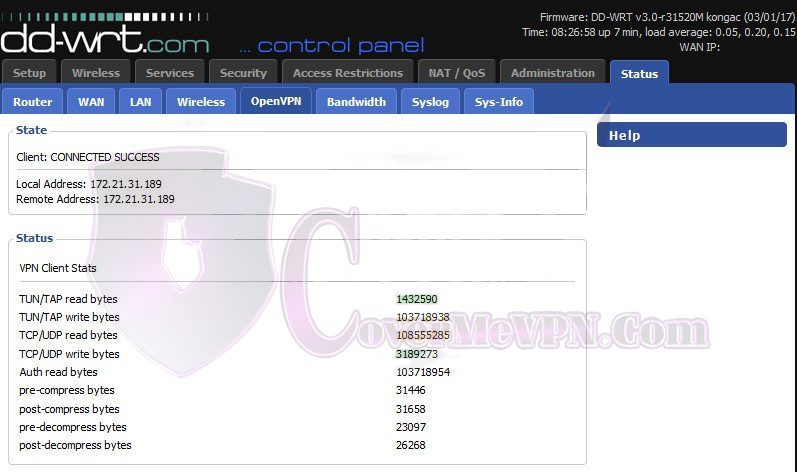
Once your router has finished booting up, verify you are connected by going to the Status/OpenVPN tab and check the State.
If you have any questions about this guide, please contact support.