TP-Link router with L2TP VPN setup with CoverMeVPN is an easy way to secure your entire network and access restricted content. This guide will show you the simple steps to configure your TP-Link router for L2TP so that all your devices can enjoy encrypted traffic and better privacy. CoverMeVPN’s L2TP protocol provides strong encryption and reliable performance, making it a great choice for protecting your data and accessing content from around the world. Whether you want to keep your online activities safe or access global content easily, this setup will give your entire household a secure and private browsing experience.
TP-Link Router L2TP VPN Setup - Step 01
Go to your TP-Link router control panel on your browser. It should have the address 192.168.1.1 by default (unless you changed it). And log in as admin.
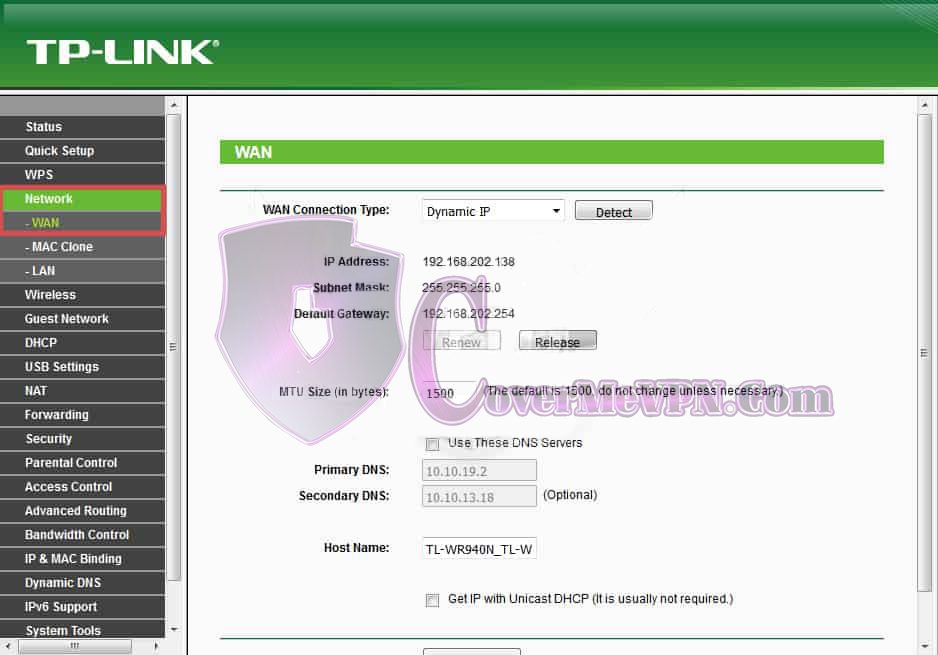
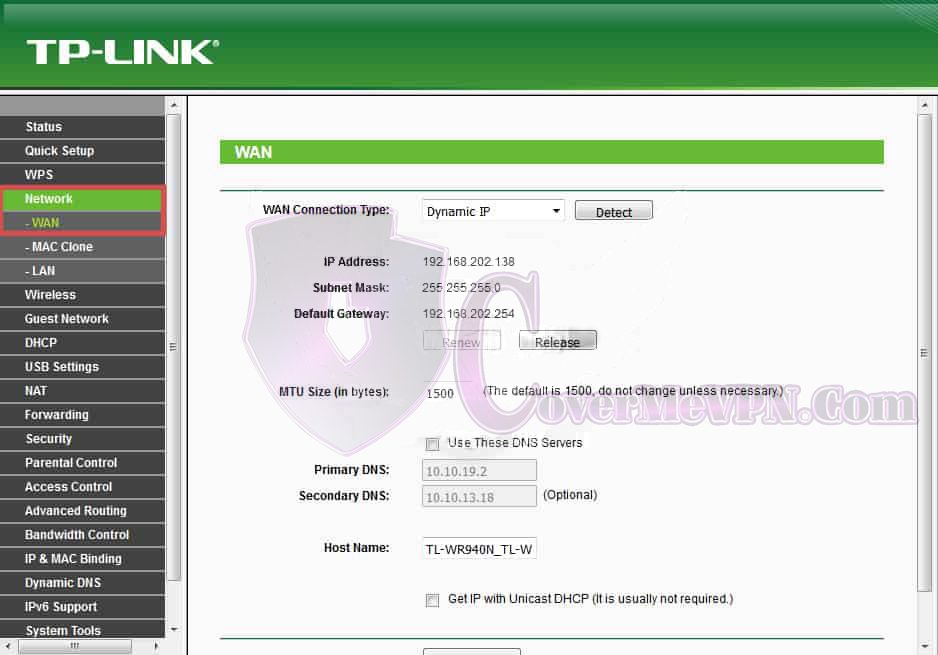
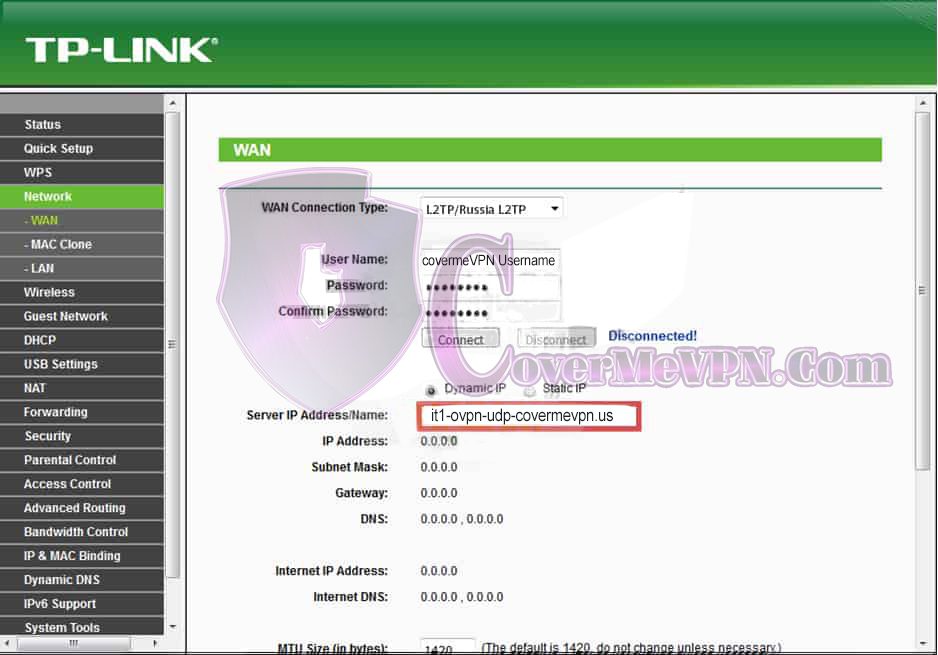
Access your router control panel and click on ‘Network’ from the left panel and then click ‘WAN’.
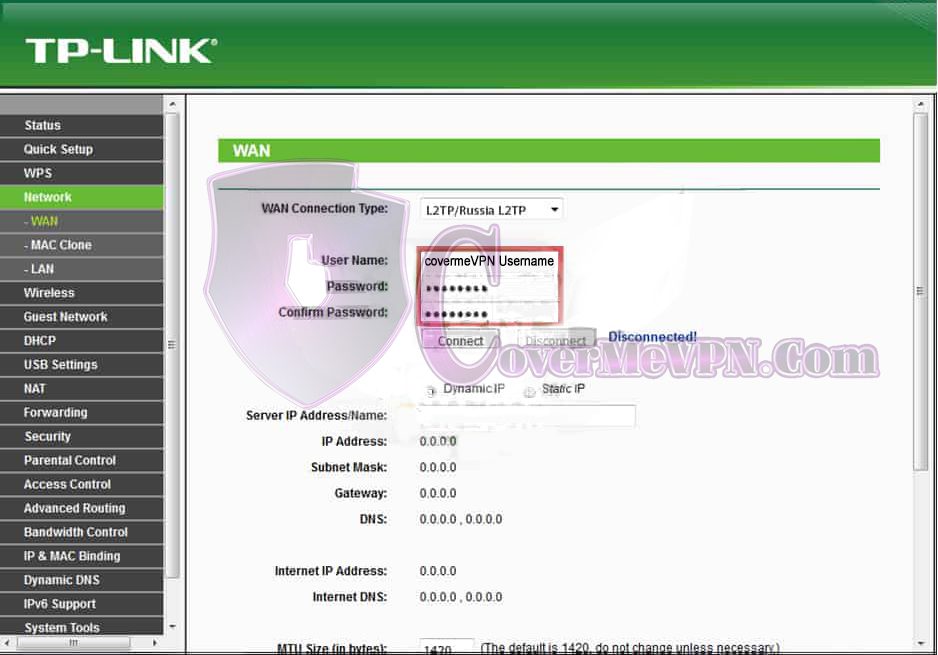
Type in your VPNShazam ‘Username’ and ‘Password’ in respective fields as received from VPNshazam.
TP-Link Router L2TP VPN Setup - Step 04
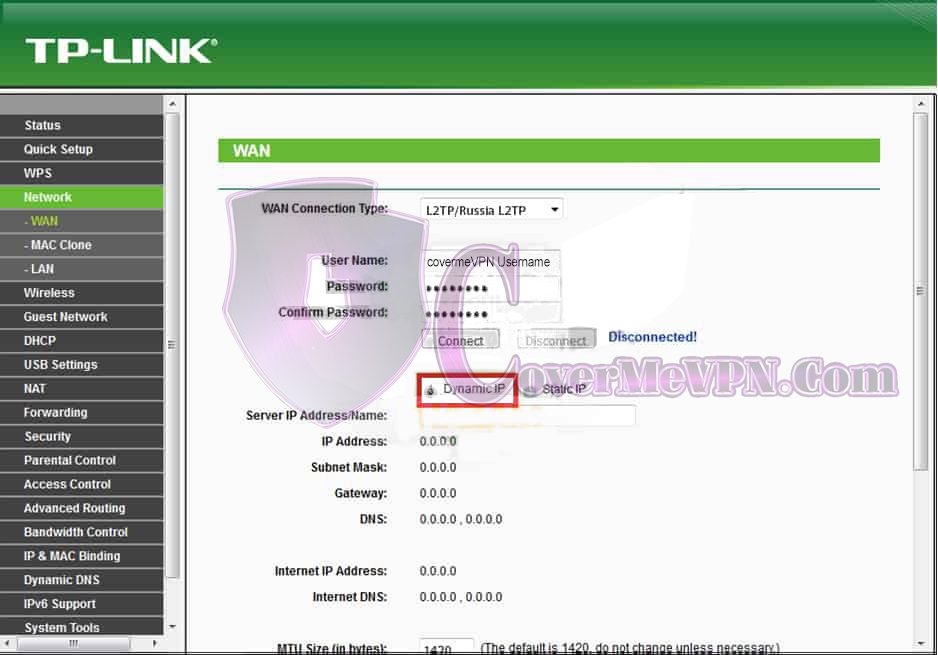
Select ‘Dynamic IP’ or ‘Static IP’ for dedicated VPN account.
TP-Link L2TP VPN Setup - Step 05
Download the covermevpn’s desired server IP from our Dynamic VPN and Chines list or Mini Dynamic according to your purchased package and enter the address in this field.
TP-Link L2TP VPN Setup - Step 06
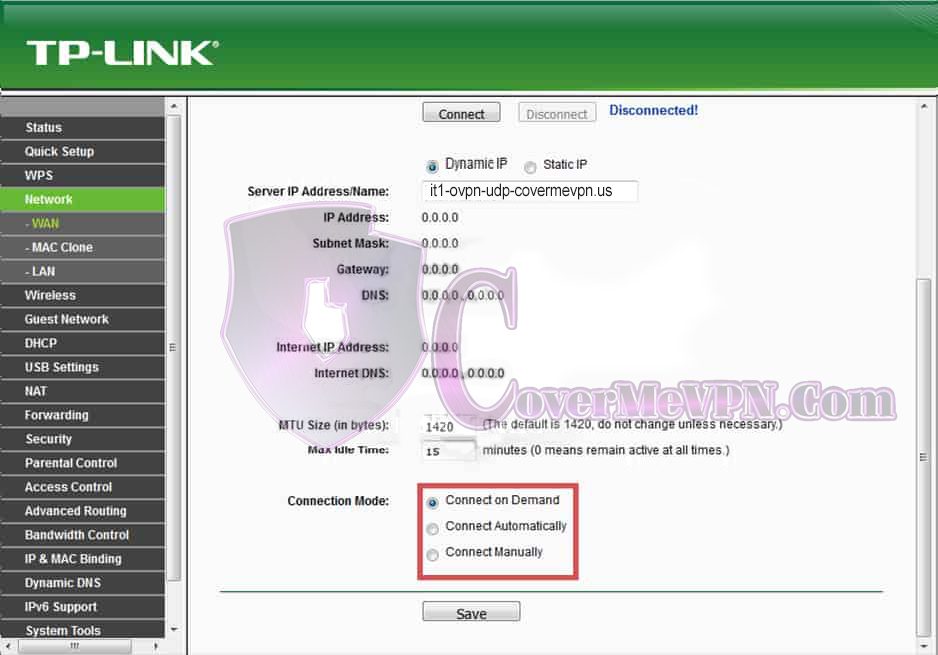
Choose whether you would like to be reconnected manually, on demand or always.
TP-Link L2TP VPN Setup - Step 07
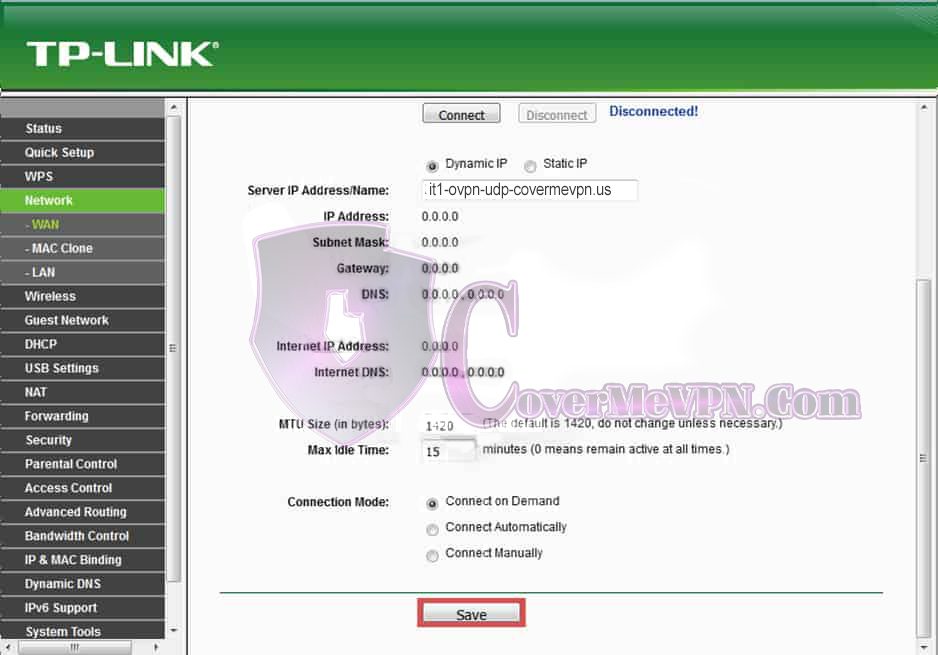
When you have done the above, click on “Save”. You Are Done!