Please Install And Activate Gtranslate Plugin
About us
It takes more than a private internet browser to go incognito. We’ll make your real IP address.
Your IP Address:
- 216.73.216.218, 104.23.197.4
Your Location:
- ,
Your Status:
Unprotected
It takes more than a private internet browser to go incognito. We’ll make your real IP address.
Unprotected
Want to set up L2TP on your Windows 10 device? It’s easy! Windows 10 L2TP VPN setup with CoverMeVPN is an easy way to enhance your online privacy and access restricted content. With CoverMeVPN’s L2TP protocol, you’ll get top-notch encryption and reliable performance to keep your data safe and access global content seamlessly. Whether you’re on public Wi-Fi or just want to browse privately, this setup will make sure you’re covered.
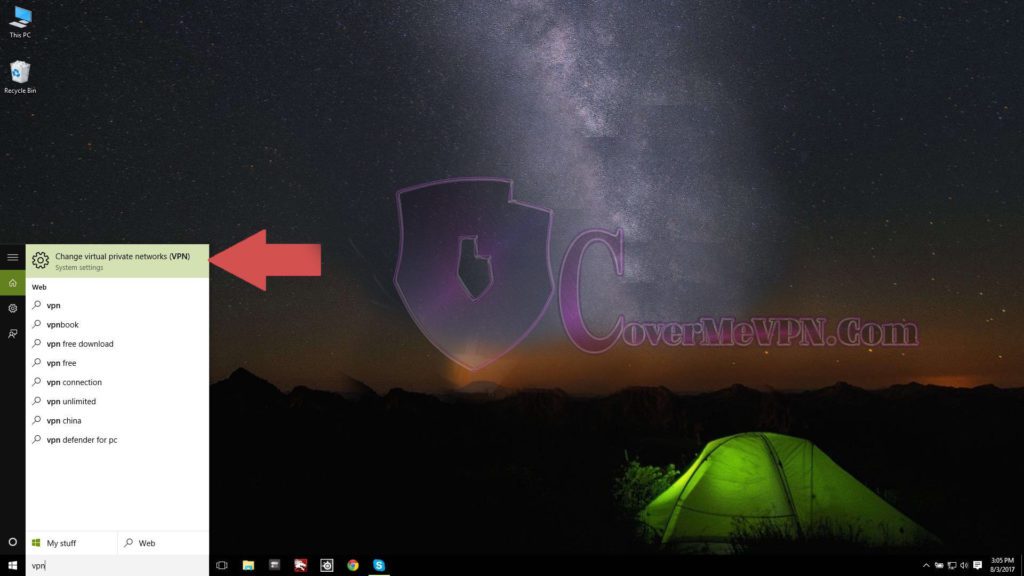
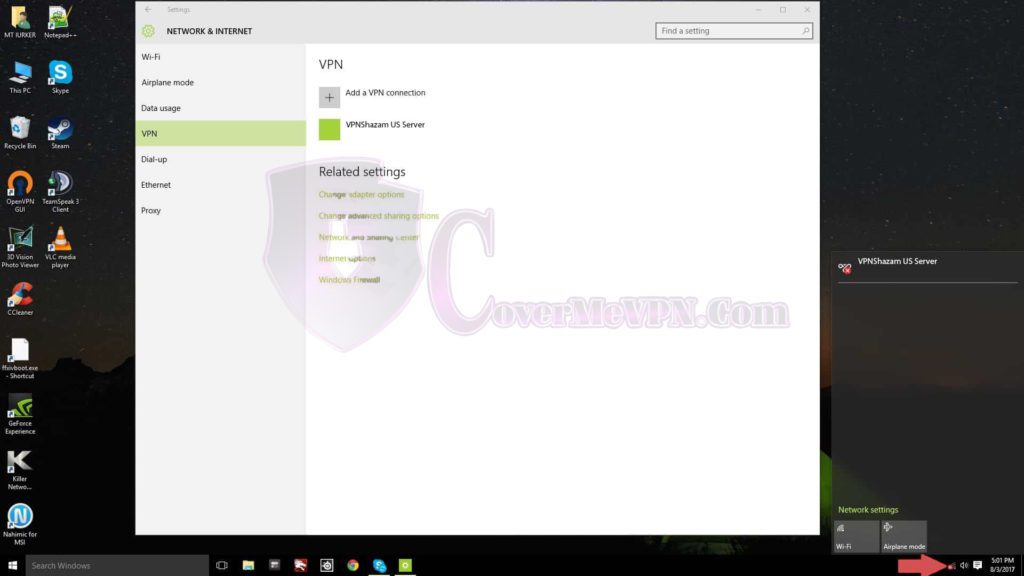
Hit the windows key and type ‘vpn’ and hit enter.
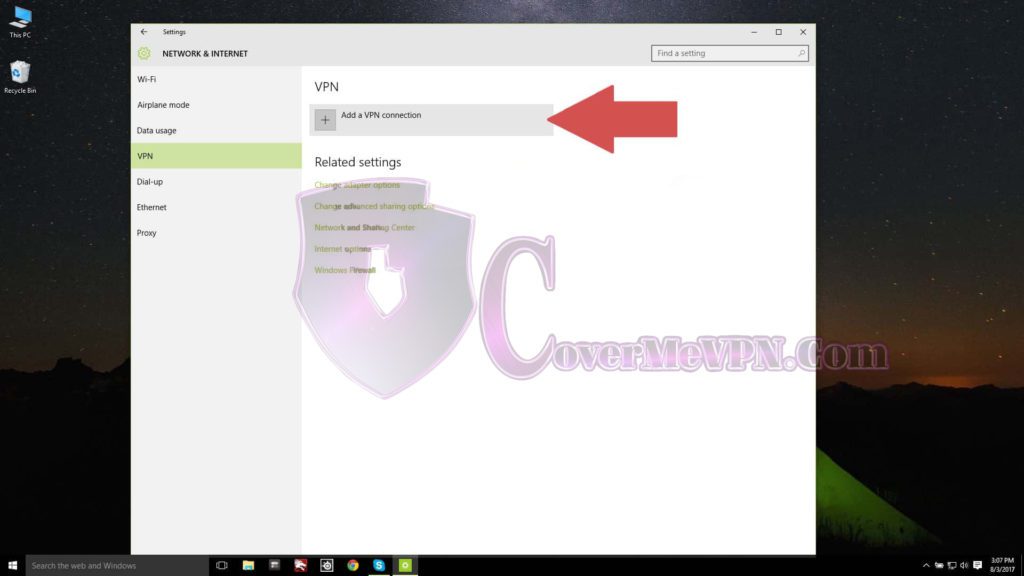
“Add a VPN connection” in the Network & Internet Settings window
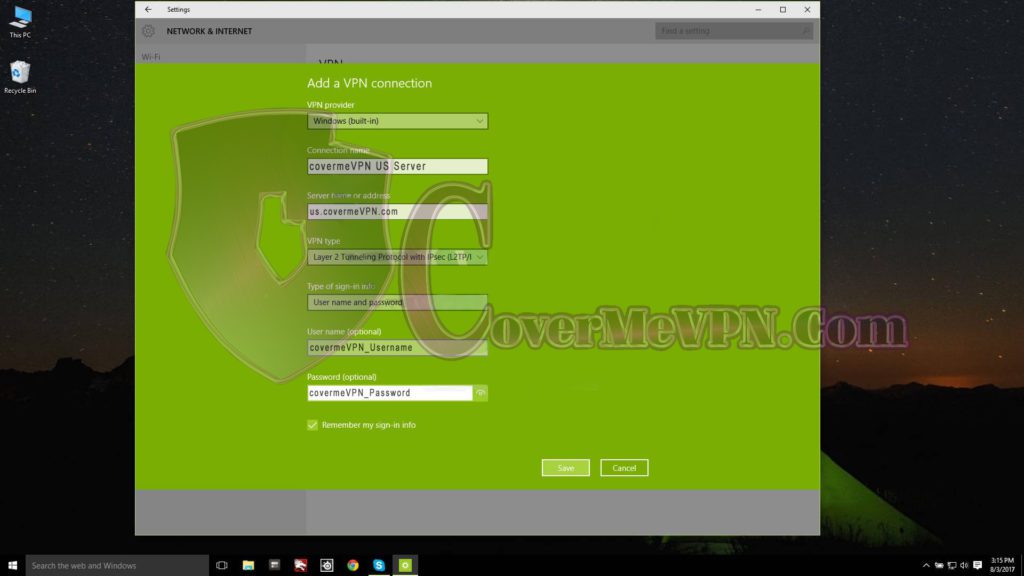
When the “Add a VPN connection” window pops up, fill in the following information:
Remember my sign-in info can be unchecked if you would like to login each time you connect
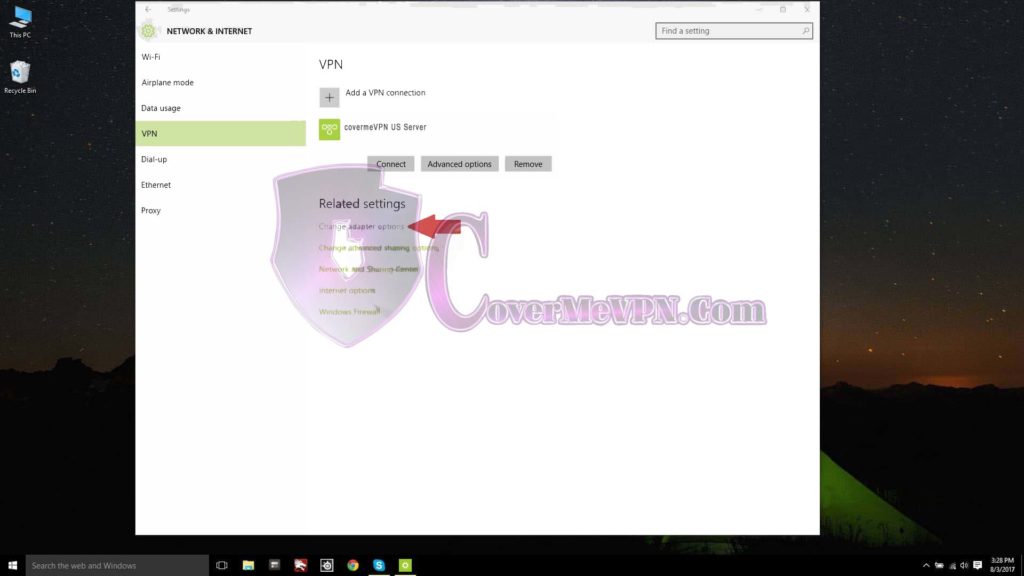
Before you connect, you will need to change some advanced settings. Please click the “Change adapter options” button under Related Settings.
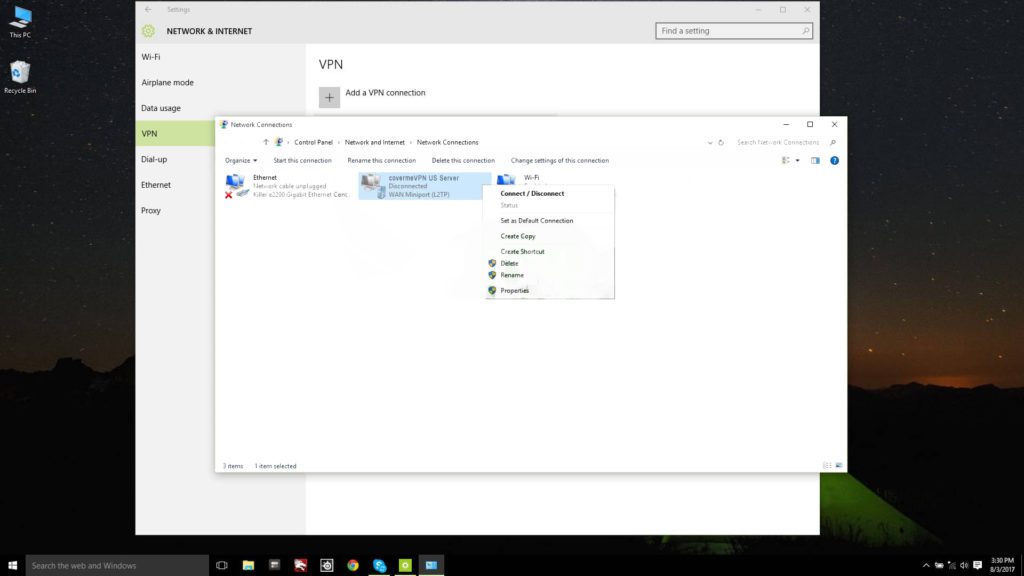
Find and right click the VPN connection you created, then click Properties.
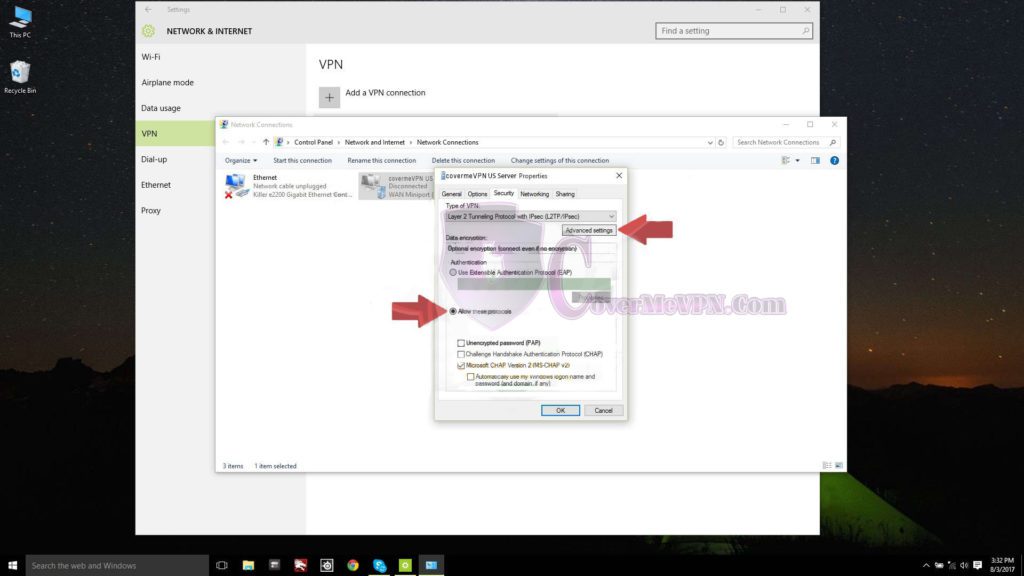
Under the Security tab in the Properties window, check “Allow these Protocols” and leave only Microsoft CHAP Version 2 checked. Then click the Advanced Settings button under the Type of VPN drop-down list at the top.
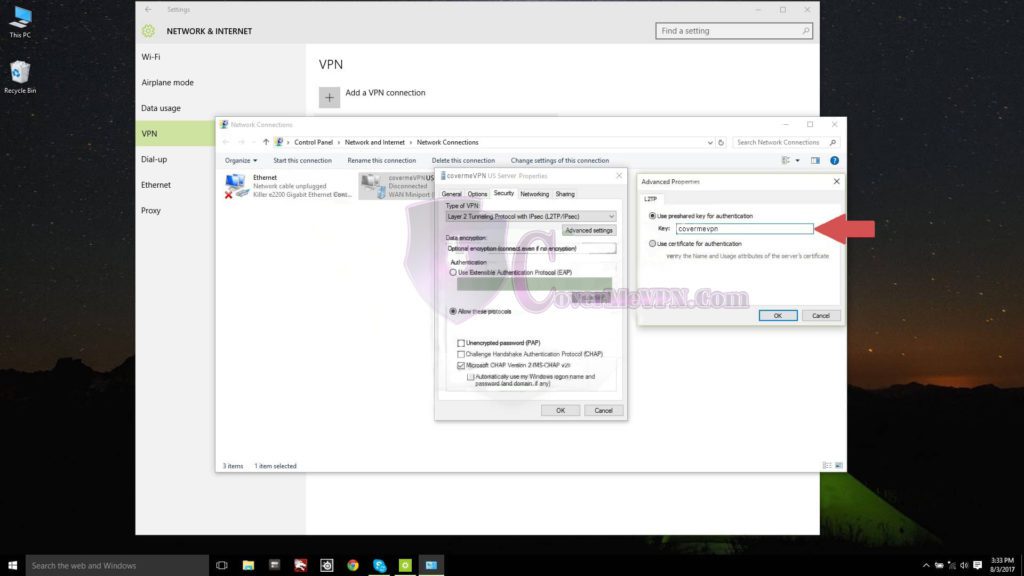
When the Advanced Properties window pops up check the Use preshared key for authentication then type ‘12345678’ for the Key. Then click OK on the Advanced Properties and the connection Properties windows.
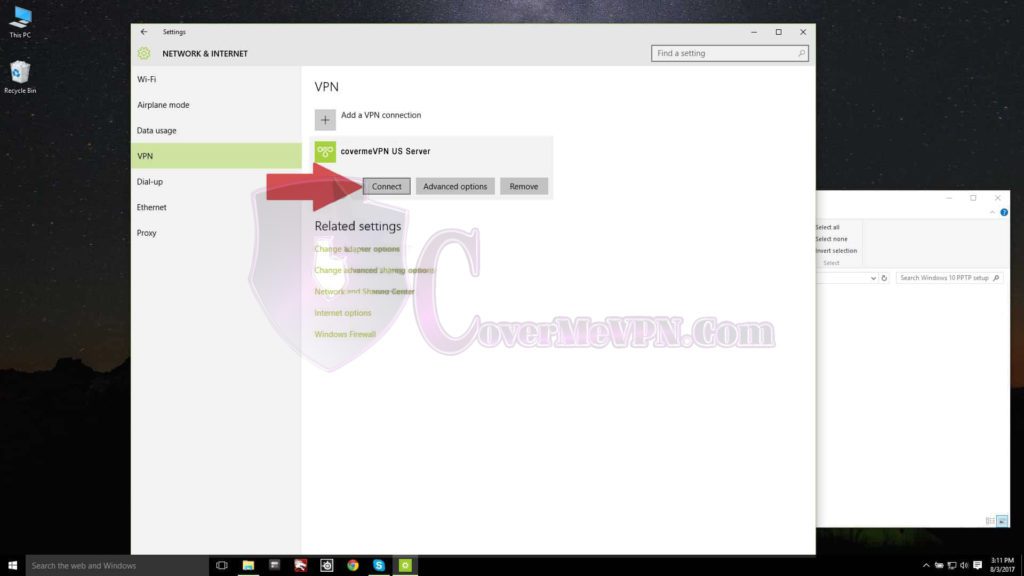
Click the connect button on the VPN you created, after which you should be connected. If you run into any issues, please contact support though our support center.
Once you have the VPN connection set up, you can connect by either clicking the Windows key and typing VPN to bring up the Network and Internet page where your VPN connections are listed. You can then click the connect button to begin the connection process. The other option is to click your connection status icon down at the bottom-right of your taskbar, then clicking the VPN of your choice. The VPN window will pop up and as before you can click the VPN you want to connect to and hit the connect button.