Your Ip : 216.73.216.1, 172.71.254.104Your Location : , Your Status : Unprotected
Please Install And Activate Gtranslate Plugin

About us

It takes more than a private internet browser to go incognito. We’ll make your real IP address.

Your IP Address:

  • 216.73.216.1, 172.71.254.104

Your Location:

  • ,

Your Status:

Unprotected

Get In Touch

Follow Us On:

Windows Vista L2TP Setup

Windows Vista L2TP VPN Setup Tutorial

Windows Vista L2TP VPN setup with CoverMeVPN is a simple way to enhance your online privacy and access restricted content. This guide will show you how to set up L2TP on your Windows Vista device to encrypt and secure your internet traffic.

CoverMeVPN’s L2TP offers strong encryption and reliable performance, making it great for protecting your data and accessing geo-restricted content. Whether you want to keep your online activities safe on public Wi-Fi or access global content easily, this setup will ensure a private and secure browsing experience with CoverMeVPN. Just follow these steps to get started with L2TP on Windows Vista.

How to Setup Windows Vista L2TP (Step by Step)

Step: 1

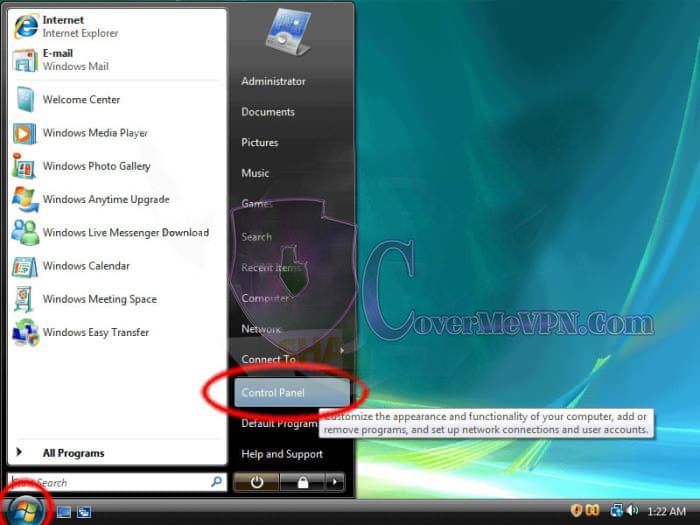
Click on the Start button and click “Control Panels”. This opens up the “Control Panel Home.”

Windows Vista L2TP VPN Setup

Step: 2

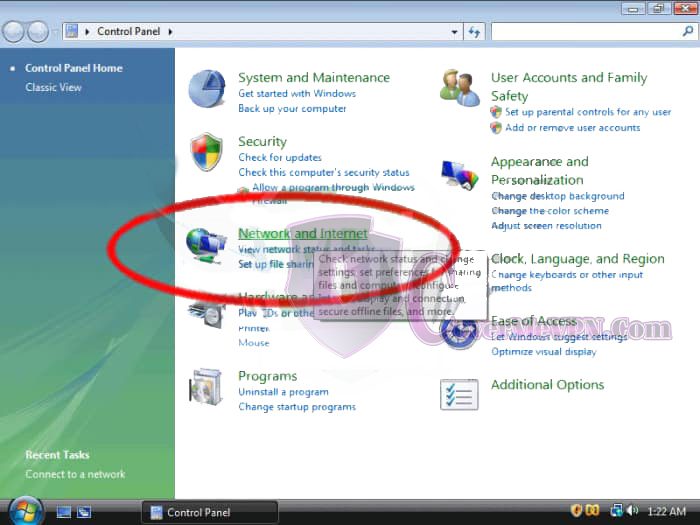
Click on the “Network and Internet” control panel.

Windows Vista L2TP VPN Setup

Step: 3

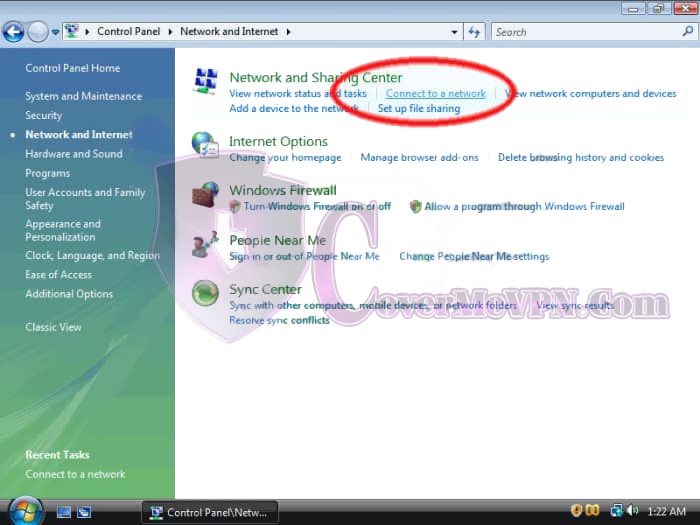
Under “Network and Sharing Center” Click on “Connect to a network.”

Windows Vista L2TP VPN Setup

Step: 4

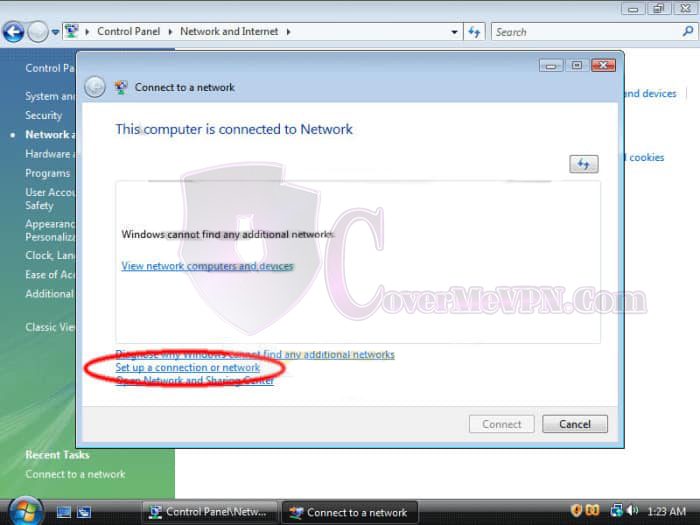
For creating new VPN connection, Click on “Set up a connection or network.”

Windows Vista L2TP VPN Setup

Step: 5

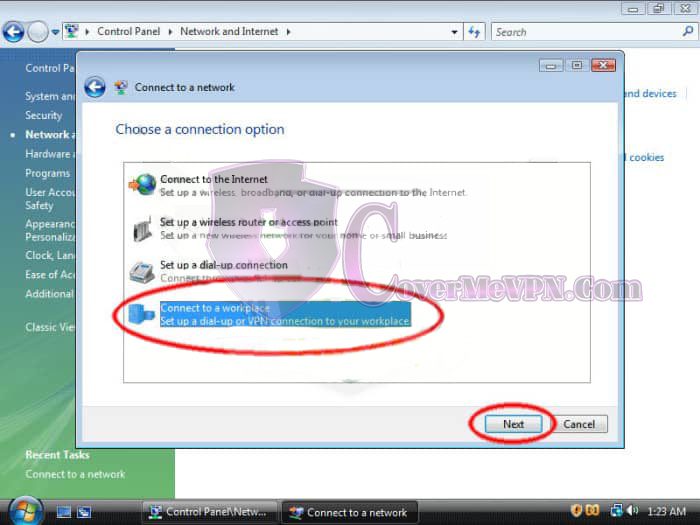
Click on “Connect to a workplace” then click “Next.”

Windows Vista L2TP VPN Setup

Step: 6

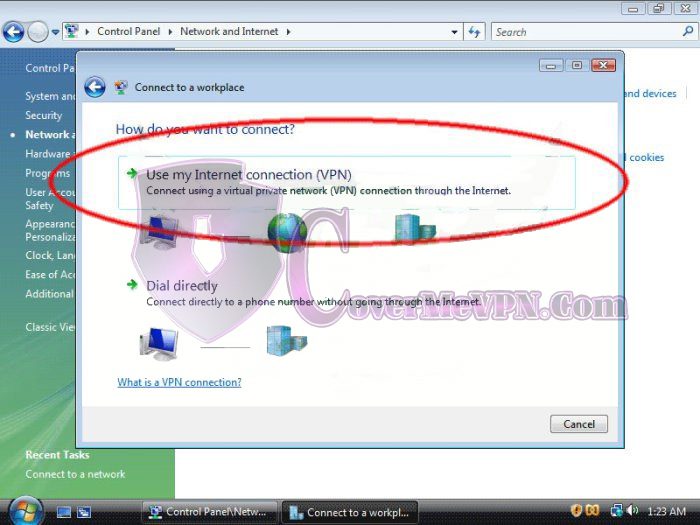
Click “Use my Internet connection (VPN).”

Windows Vista L2TP VPN Setup

Step: 7

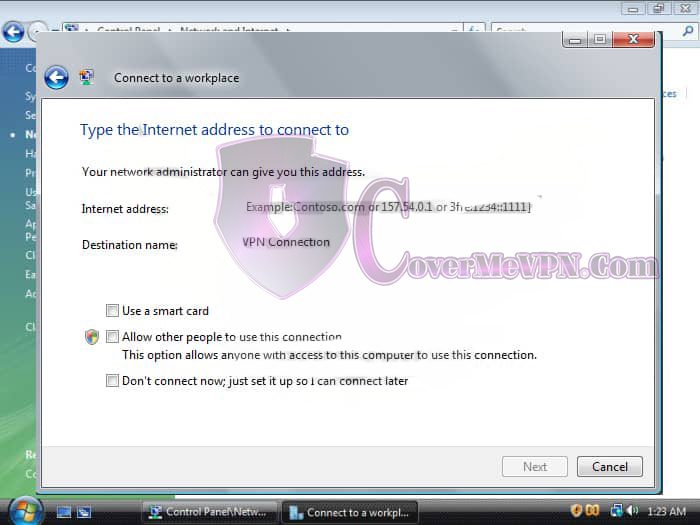
Enter the server information (Host IP).

For the ‘Server address’ field, fill in the server IP from our Dynamic VPN and Chinese list or Mini Dynamic dedicated VPN, check our mail to you, according to your purchased package, that you would like to connect.

  • Internet address: “Insert IP”
  • Destination Name: covermevpn
Windows Vista L2TP VPN Setup

Step: 8

You should see this screen next. Click the “Connect Now” button to go online.

Windows Vista L2TP VPN Setup

Step: 9

A Set Network Location window may appear. Click Public location.

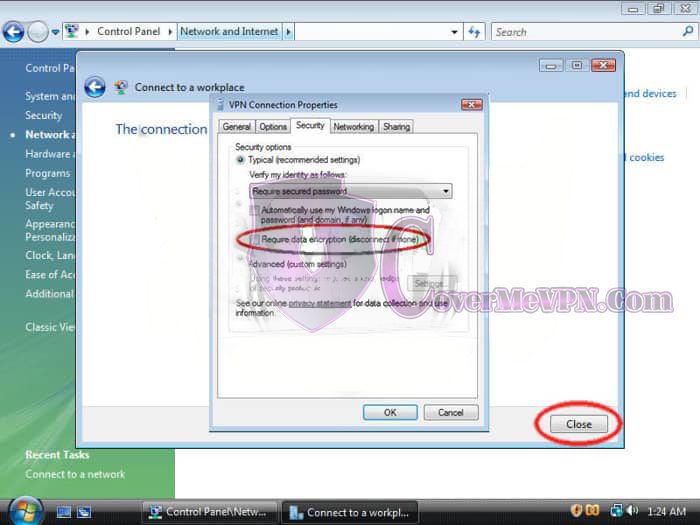
Go to Start and click the Connect To button, and then right-click on your VPN connection and select Properties.

In the Security tab, uncheck Require data encryption (disconnect if none).

Windows Vista L2TP VPN Setup

Step: 10

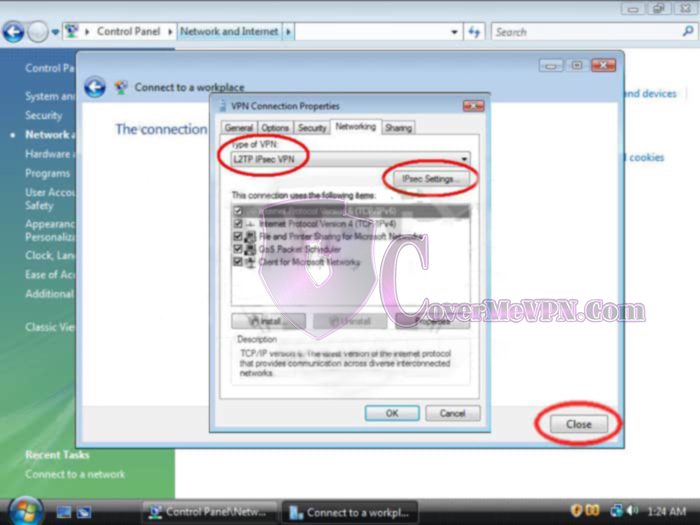
In the Networking tab, select Type of VPN: L2TP IPSec

Click on the IPSec Settings button, check Use pre-shared key for authentication, and input 12345678 as the key, and click OK.

To connect/disconnect the VPN connection right right-click on the connection icon (viewable at Network Connections) and select connect/disconnect.


Windows Vista L2TP VPN Setup
arrow up