Your Ip : 216.73.216.1, 172.71.1.192Your Location : , Your Status : Unprotected
Please Install And Activate Gtranslate Plugin

About us

It takes more than a private internet browser to go incognito. We’ll make your real IP address.

Your IP Address:

  • 216.73.216.1, 172.71.1.192

Your Location:

  • ,

Your Status:

Unprotected

Get In Touch

Follow Us On:

Windows XP L2TP Setup

Windows XP L2TP VPN Setup Tutorial

Windows XP L2TP VPN setup with CoverMeVPN is a simple way to enhance your online privacy and access restricted content. This guide will show you how to set up your Windows XP device for L2TP in a few easy steps, making sure your online traffic is safe and private. With CoverMeVPN’s L2TP protocol, your data will be well-protected, and you can easily access content from around the world. It’s perfect for keeping your online activities secure on public Wi-Fi or for enjoying global content hassle-free.

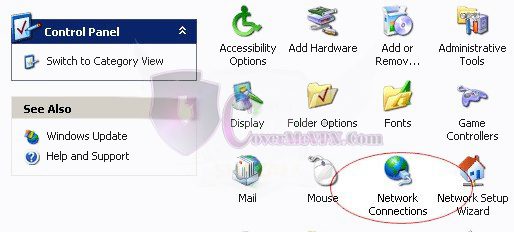
Windows XP L2TP VPN Setup - Step 01

Go to “Control Panel”. Then Click “Network Connections”.

Windows XP L2TP VPN Setup

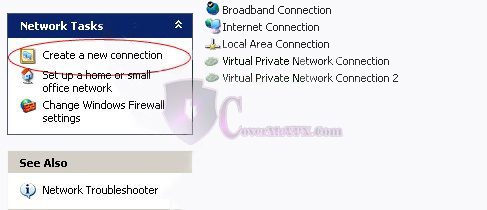
Windows XP L2TP VPN Setup - Step 02

Click “Create a new connection” on the top left.

Windows XP L2TP VPN Setup

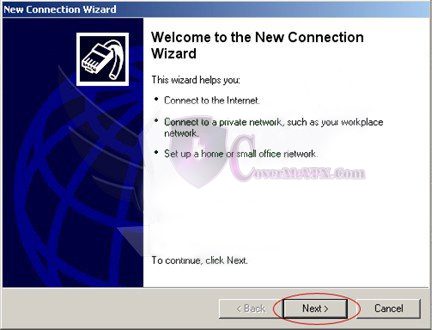
Windows XP L2TP VPN Setup - Step 03

Click “Next >”.

Windows XP L2TP VPN Setup

Windows XP L2TP VPN Setup - Step 04

Select “Connect to the network at my workplace”. Click “Next >”.

Windows XP L2TP VPN Setup

Windows XP L2TP VPN Setup - Step 05

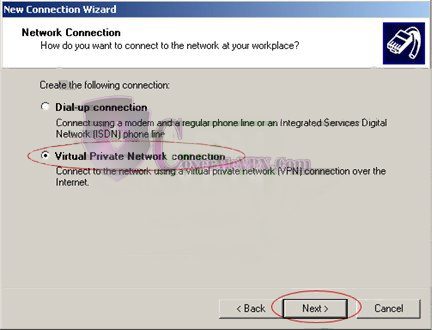
Select “Virtual Private Network connection”. Click “Next >”.

Windows XP L2TP VPN Setup

Windows XP L2TP VPN Set up - Step 06

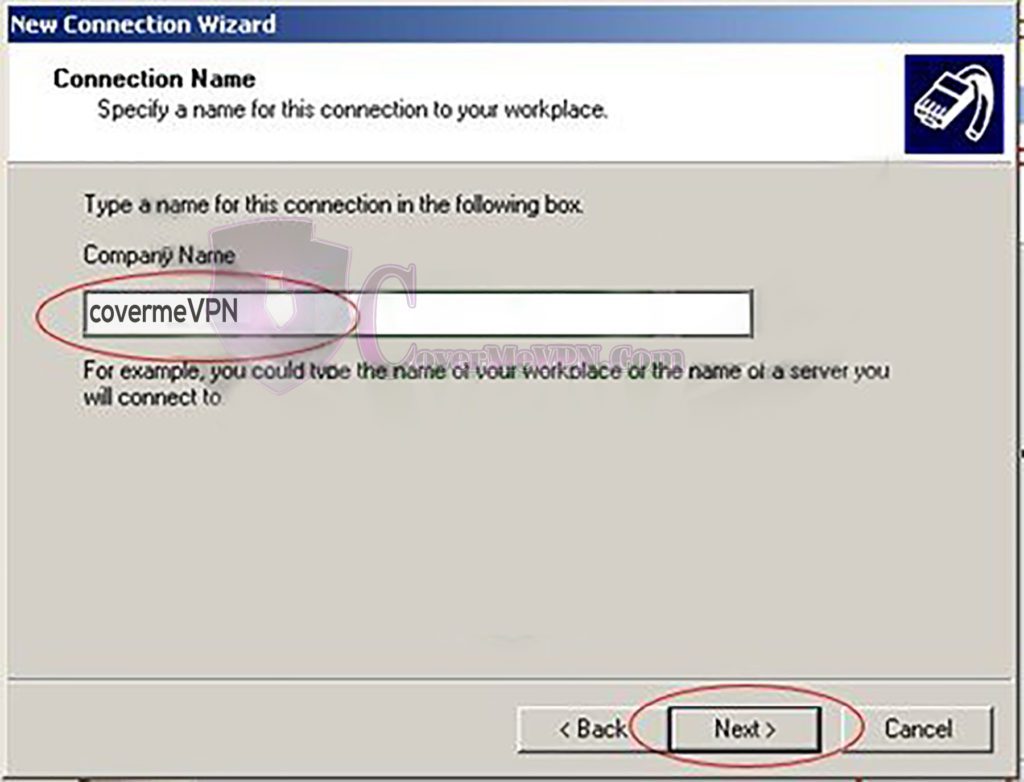
Enter a connection name, such as “covermevpn”, in “Company Name”. Click “Next >”.

Windows XP L2TP VPN Setup

Windows XP L2TP VPN Set up - Step 07

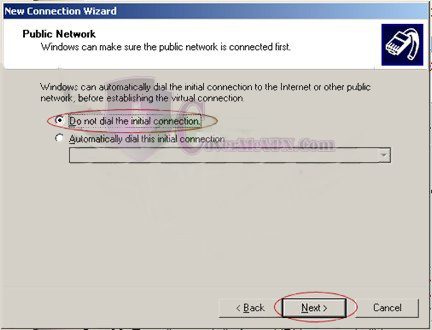
(Optional) Select “Do not dial the initial connection”. Click “Next >”.

Windows XP L2TP VPN Setup

Windows XP L2TP VPN Set up - Step 08

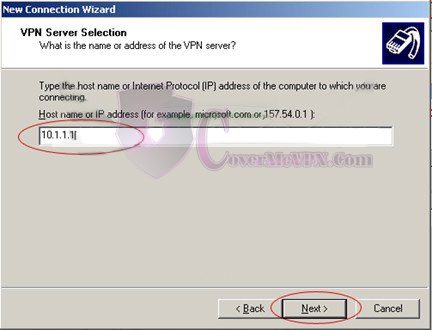
Enter “server IP” of your VPN account in “Host name or IP address”.

For the ‘Server address’ field, fill in the server IP from our Dynamic VPN and Chines list or Mini Dynamic  (dedicated VPN check our mail to you) according to your purchased package that you would like to connect.

Click “Next >”.

Windows XP L2TP VPN Setup

Windows XP L2TP VPN Set up - Step 09

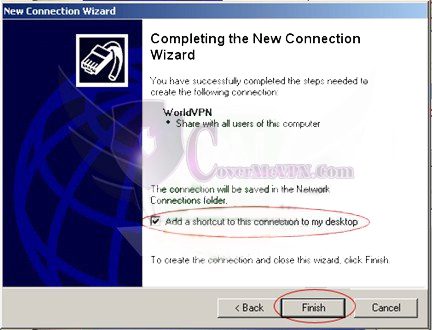
Select “Add a shortcut to this connection to my desktop” to enable fast access to vpn. Click “Next >”.

Windows XP L2TP VPN Setup

Windows XP L2TP VPN Set up - Step 10

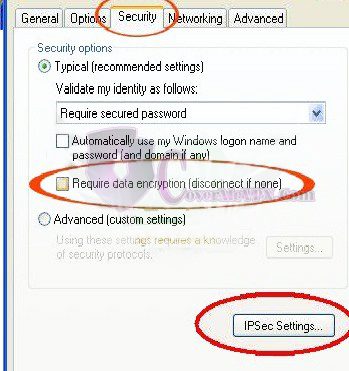
Select Properties and open the Security tab

Windows XP L2TP VPN Setup

Windows XP L2TP VPN Set up - Step 11

Uncheck Require data encryption (disconnect if none) and then click on IPSec Settings button.

Windows XP L2TP VPN Setup

Windows XP L2TP VPN Set up - Step 12

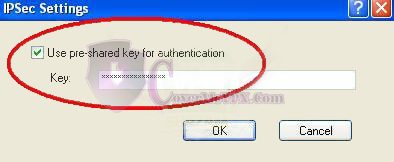
Check Use pre-shared key for authentification and input 12345678 as the key and click OK.

Windows XP L2TP VPN Setup

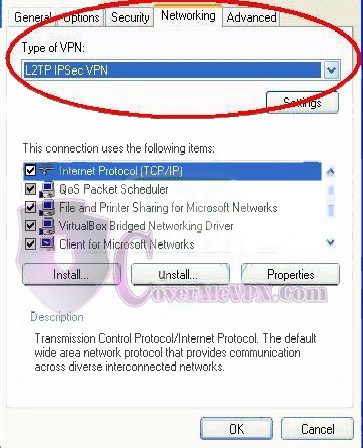
Windows XP L2TP VPN Set up - Step 13

In the Networking tab select as Type of VPN: L2TP IPSec VPN then click OK.

Windows XP L2TP VPN Setup

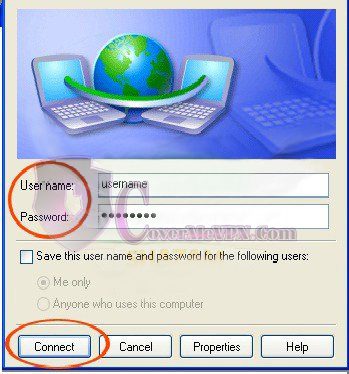
Windows XP L2TP VPN Set up - Step 14

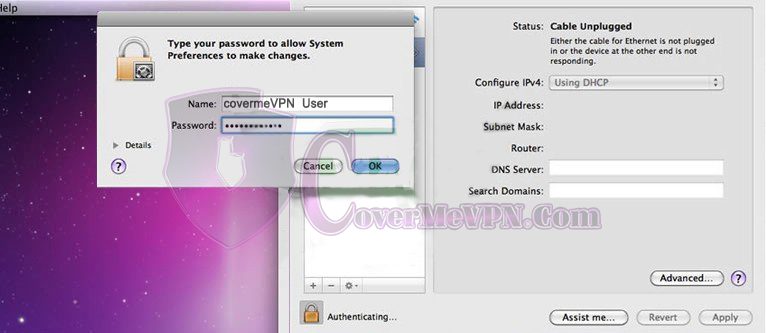
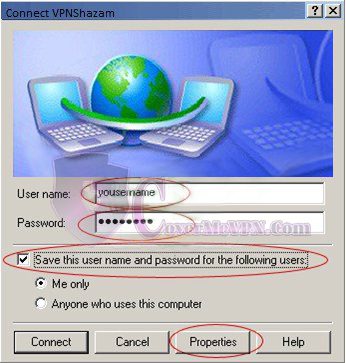
Fill in your Username and Password.

Windows XP L2TP VPN Setup

What is the difference between PPTP and L2TP?

PPTP and L2TP are VPN protocols with key differences. PPTP is faster and easier to set up but has weaker security. L2TP, combined with IPsec encryption, is more secure and reliable but slightly slower. PPTP works on most devices with minimal setup, while L2TP may need extra configuration. If you prioritize speed and ease, go for PPTP; if security and stability matter more, choose L2TP.

Is Windows VPN safe?

Windows VPN can be safe if configured correctly. It supports secure protocols like L2TP/IPsec and IKEv2, but PPTP is outdated and less secure. For better protection, use strong encryption, secure authentication, and a trusted VPN provider. Always update Windows and enable a firewall to enhance security.
arrow up